
Resources For A Successful Light Show
Frequently Used Resources

Unit IDs & DIP Switches
These little switches are the culprit of most playback problems! These settings must match your sequences. Here's a helpful reference table.

Network Design & Capacity
How many pixels per network? What does network speed mean? What is ELOR? Plan your show with confidence using this guide.

Pixel Extension Limits
Learn how long of a pixel extension cord you can use from your controller to your RGB props, and what factors impact the answer.

Firmware Updates
Using the latest firmware unlocks new features and improves compatibility with new versions of software. Download updates for any LOR product here.

Access more than 80 tutorials to help you learn to use Light-O-Rama software, ranging from 3 minutes to full hour-long presentations.
Hardware Manuals
All Documentation
Find the full user manual or available Quick Guide for all Light-O-Rama hardware.
Pixie Controllers
Used in our CPC Packages, learn more about the Pixie2, Pixie4, Pixie8, and Pixie16 simple RGB controllers (DIP switches).
Pixielink
A key component in using Pixel Bright sequences, and running Pixie controllers at faster speeds.
Singing Faces
Make sure to follow these settings to add your Singing Character to your show!
Directors (Mini, N2, N4)
A computer-less playback option with an SD card.
Touch Player
Control your show from a 7" Touchscreen.
Residential CTB16PC
The original AC controller for traditional lights.
Aurora Core E1.31
An E1.31 pixel controller for advanced shows.
Software Guides - Preview & Sequence Creation
Full Software Guide
Explore the full software guide and dive into designing your layout and synchronizing your lights to music.
Key Concepts
An introduction to our software: How previews and sequences work together to create a light show.
Create a Preview
The first step to beginning a light show - Draw your virtual display and design your prop layout.
Create a Sequence
Learn to create effects for traditional or RGB lights to go along with any song you choose!
Defining a Prop
Configure the settings for each prop in your show.
Prop Groups
Organize your props for easier sequencing.
Audio Wizards & Timings
Let the software detect the beat of the music.
RGB Sequencing
A deeper dive into sequencing RGB pixels.
Adapting Sequences
Learn to map our sequences to your house.
Advanced Effects
Explore advanced sequencing options and effects.
Animations & Images
Use the Sketch effect to bring animations and characters to life.
Upgrade from S4
Convert sequences from S2/S3/S4 to the latest version.
Software Guides - Configuration & Playback
Full Software Guide
Explore the full software guide and learn about configuration and show playback in depth.
Set Your Networks
Assign a network using a USB485-HS Adapter, or define settings for E1.31 / DMX devices.
Configure Controllers
Use the Hardware Utility to scan for controllers, change Unit IDs, and update firmware.
Create a Show Playlist
Create a schedule for this year's sequences. Choose times, and order of playback.
Show Playback
Monitor or make changes to a currently playing show.
Create an SD Card
Create or modify an SD card show for use with a Director.
Test Lights
Test your connections by prop, group, or channel.
Mobile App
Control your LOR show playback from your cell phone.
Advanced Options


Related Videos
Hardware Basics
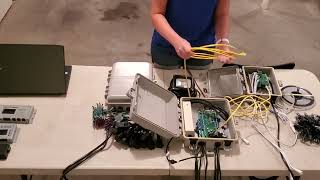
AC vs Pixels. Computer vs. Director. Here's the basics.

Software Basics
An overview of the programs you'll find in the S6 Software Suite.
DIP Switch Settings
Only 6 lights working on your pixel prop? Here's why and how to fix it.

Upgrade to S6
There are more reasons than just pixel sequencing to upgrade to S6.

Adapting Sequences
Use 'tagging' to quickly transfer our sequence to your house.

Fill Empty Props From
Expansion is easy with this feature. Fill effects into your newly added props.
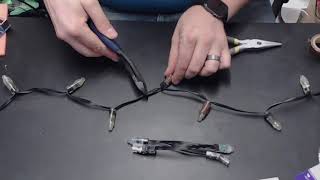
Repairing pixels with CLICK-ITS
Repair a pixel strand of bullets or squares in 5 minutes.
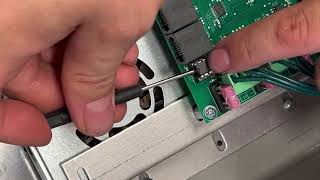
Replace a Pixie COM Chip
Pixie controller acting up? Try this easy repair.